
Overview:
After enabling the Manage Expense feature, the Expense menu appears on the left-side menu of our app in the Shopify Admin panel. Open it and click Upload Receipt to add a document via QR code or from your computer. After uploading, click on 'Review' and you can make any change if required. Click on ‘Save & Send’ to Xero and confirm by clicking ‘Create’ to create entries in Xero.
Detailed Information:
After adding this feature, follow the steps below to upload your receipt and generate an entry in Xero:
-
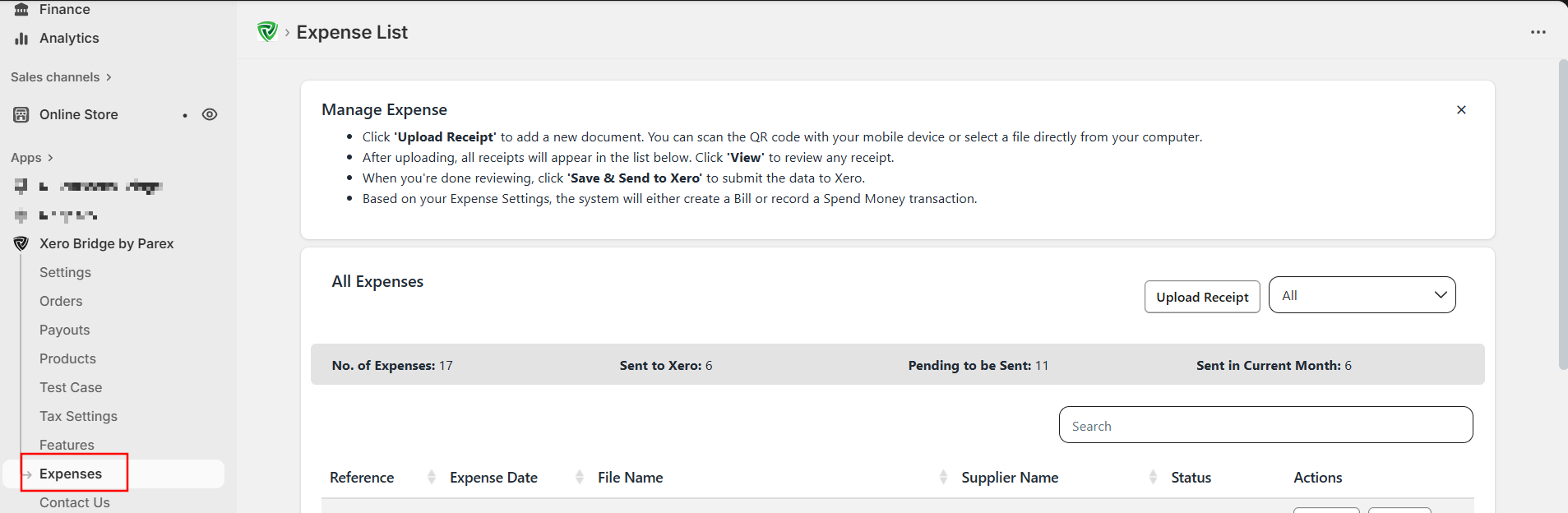
Go to the Expense option from the left menu.
-
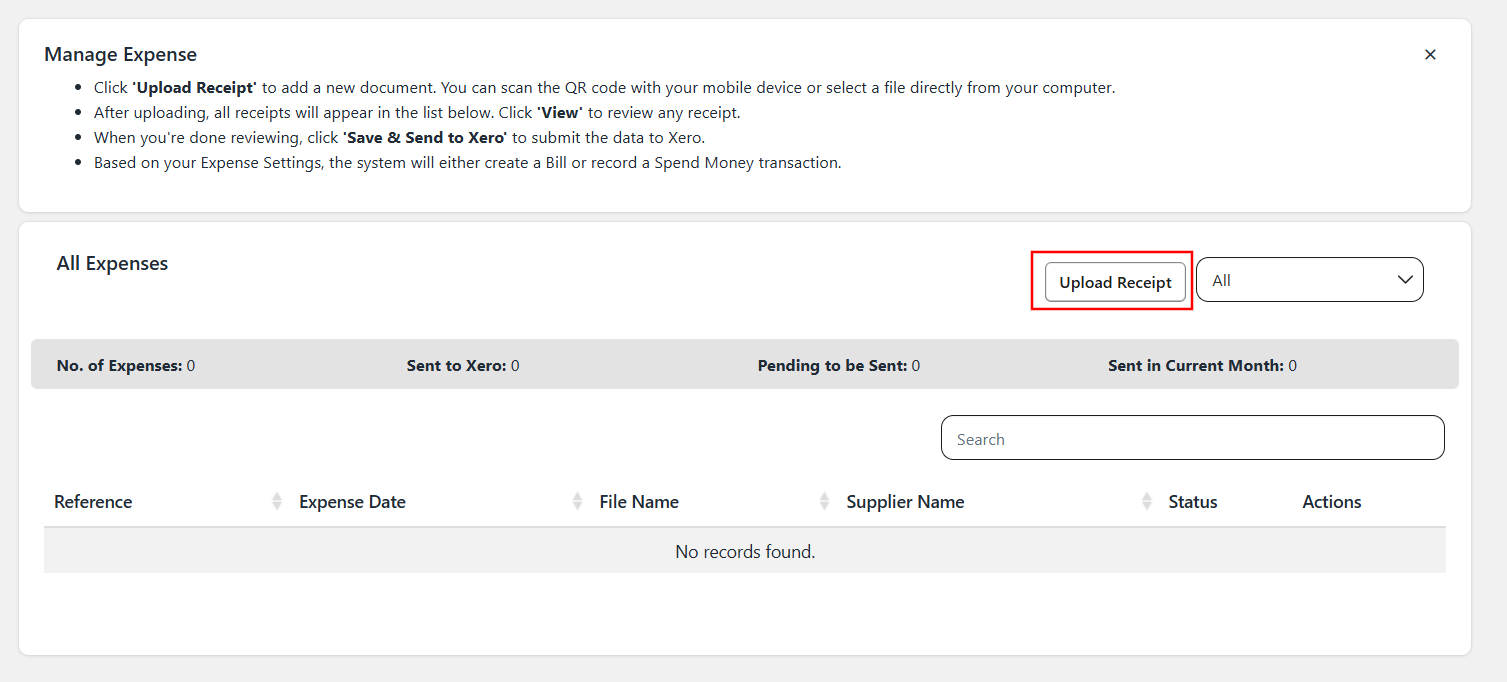
Read the instructions at the top to understand how the feature works, then click the ‘Upload Receipt’ button.
-
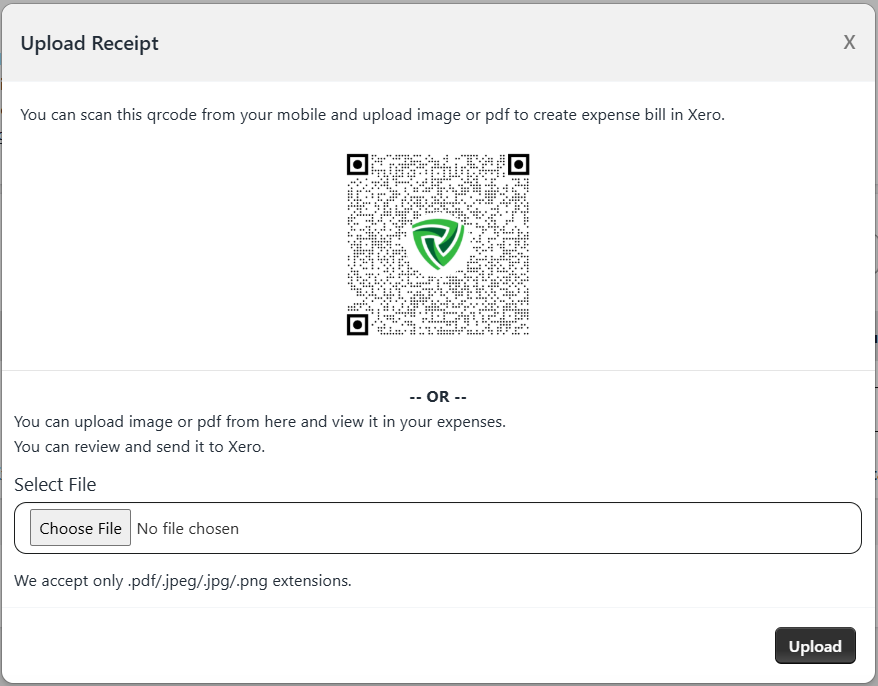
You can upload a receipt by scanning the QR code from your mobile device or by clicking ‘Choose File’ to select one from your computer.
-
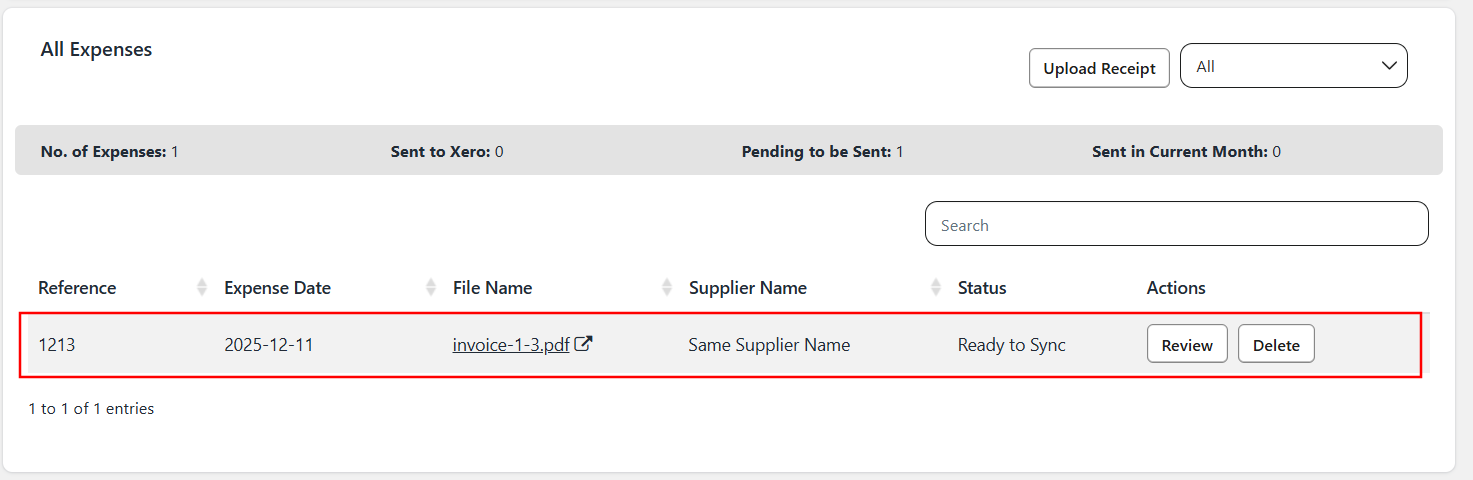
After choosing the file, click ‘Upload’. The receipt will appear in the list.
-
Before sending it to Xero, you can review or delete the entry. Click ‘Review’ to see the details copied from the receipt.
-
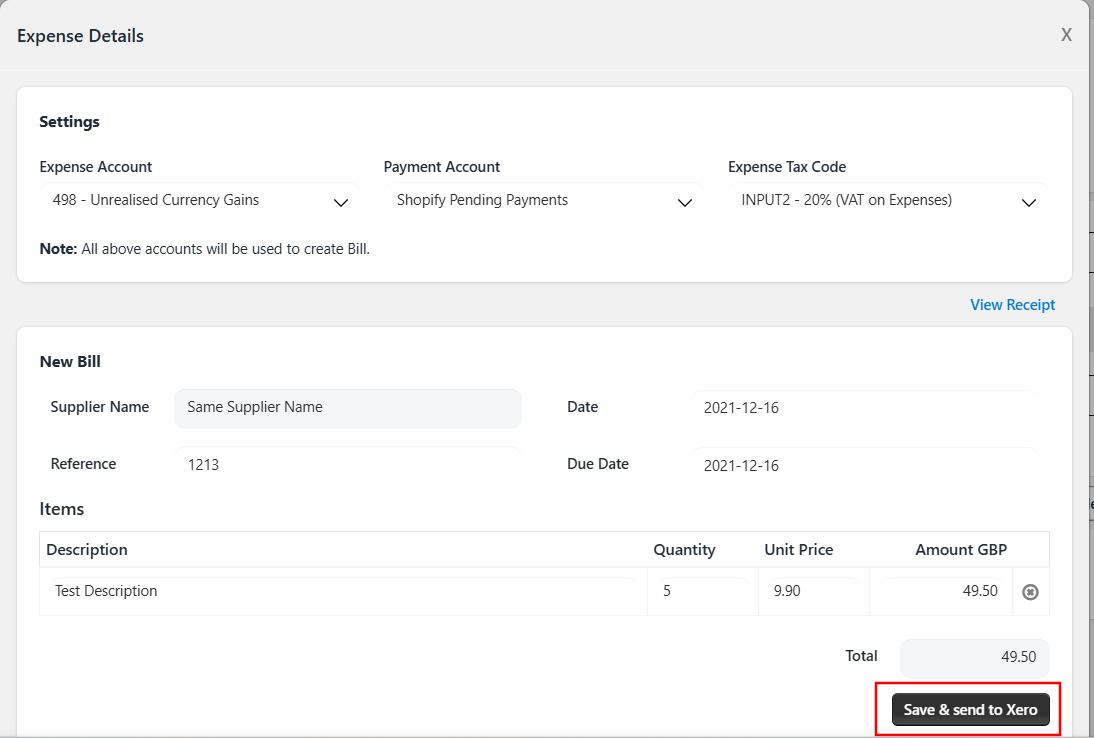
The Expense Details window will open, showing all applied settings and the copied line items.
-
Check the details and make any necessary changes if required. Click ‘Save & Send to Xero’.
-
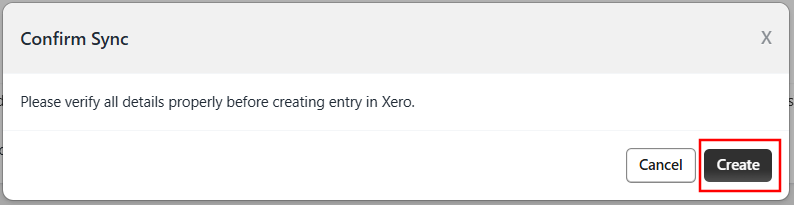
Confirm the action by clicking ‘Create’ when prompted.
-
If there is an error, an entry in Xero will not be created and an error message will be displayed on the screen.
-
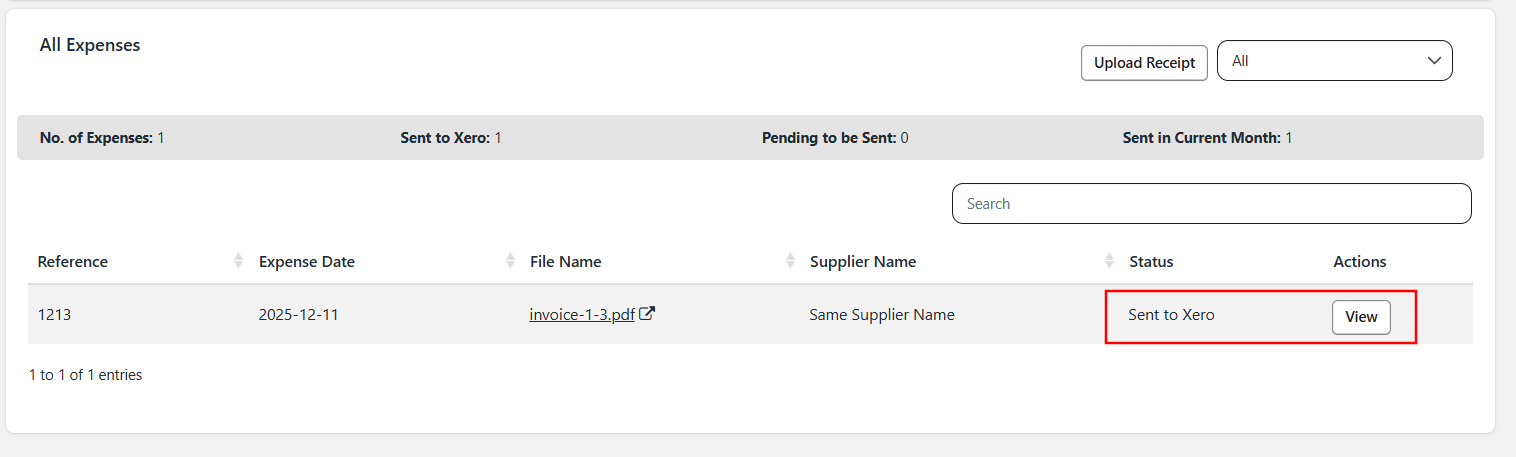
If the data is successfully sent, the window will close, the document status will update to Sent to Xero, and you can view the entry in Xero by clicking ‘View’.
In this way, you can easily upload receipts and have bills or spend-money entries created automatically in Xero, streamlining your expense management process.