
Overview:
The Stripe Gateway Payout & Fees feature allows Parex Bridge QBO to sync Stripe payouts and fees to QuickBooks Online.
Shopify may use “Stripe” internally as a payment method. This feature is required only if you collect payments through Stripe separately from Shopify Payments and need to sync Stripe payouts and fees.
How the Feature Works:
The Stripe payout flow works similarly to the Shopify Payout flow in Parex Bridge QBO.
When a sale is made using Stripe Payments, the funds are initially posted to the Stripe Holding Account configured in the Stripe payout sync feature settings.
For each Stripe payout, our app creates a Journal Entry that:
-
Transfers the payout amount from the configured Stripe Holding Account to the bank account.
-
Records the Stripe fees in the configured Fees Account.
How to Subscribe to the Feature:
-
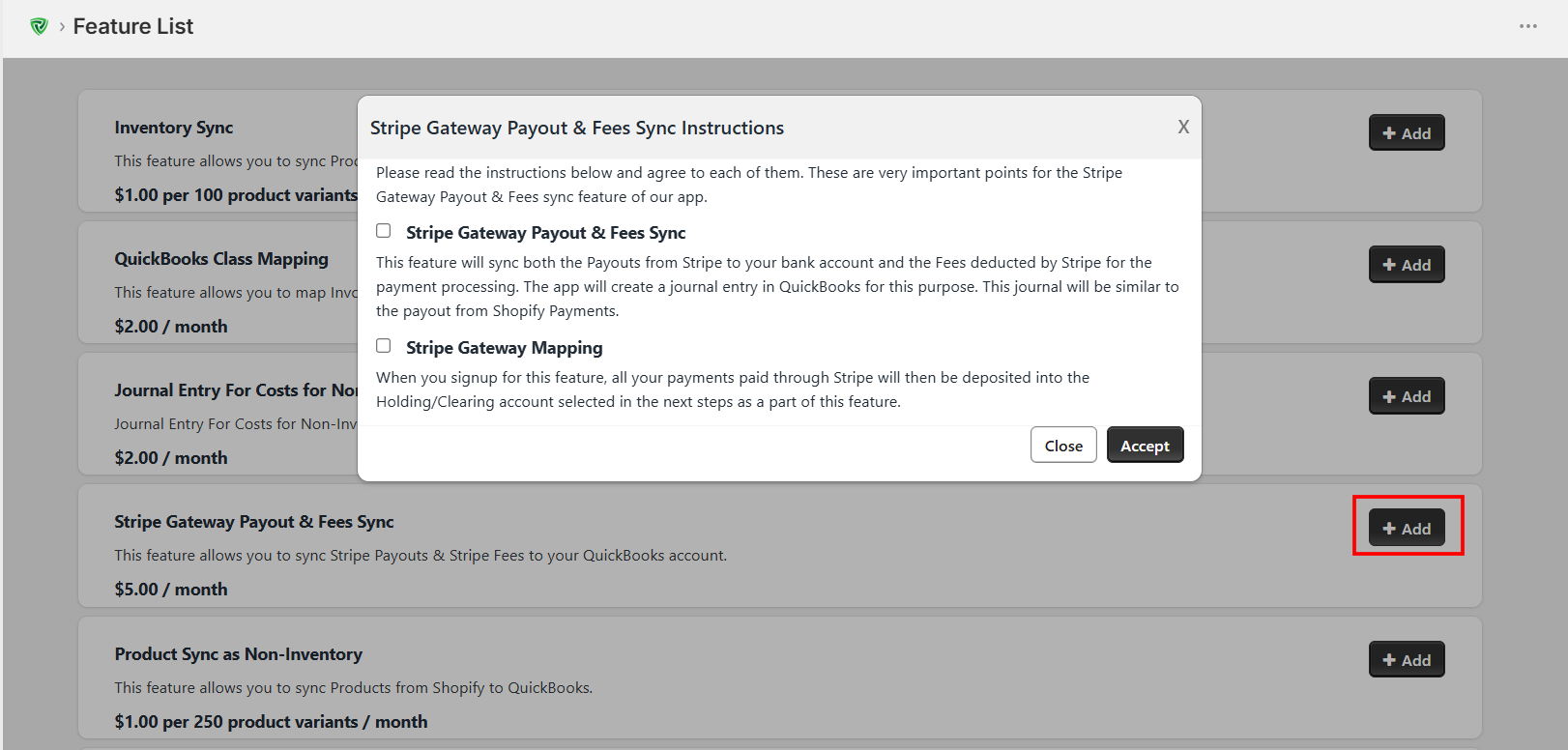
Go to the Feature List page in the Parex Bridge QBO app and subscribe to the Stripe Gateway Payout & Fees feature.
-
A pop-up will display the instructions. Review the information, select all required checkboxes, and click Accept.
-
You will then be prompted to enter your Stripe credentials.
-
After entering your credentials, a pop-up will appear where you need to select:
-
Sync Start Date
-
Stripe Holding/Clearing Account
-
Bank Account
-
Stripe Fees Account
-
-
Review the selected details and click Accept to complete the setup.
Once the setup is completed, the app will sync Stripe payouts to the selected QuickBooks accounts starting from the configured sync start date.