
Tags:
ManageExpenseFeature
ManageExpenseFeatureSubscription
AddManageExpenseFeature
How to add Manage Expense Feature for the Xero Bridge app?
Overview:
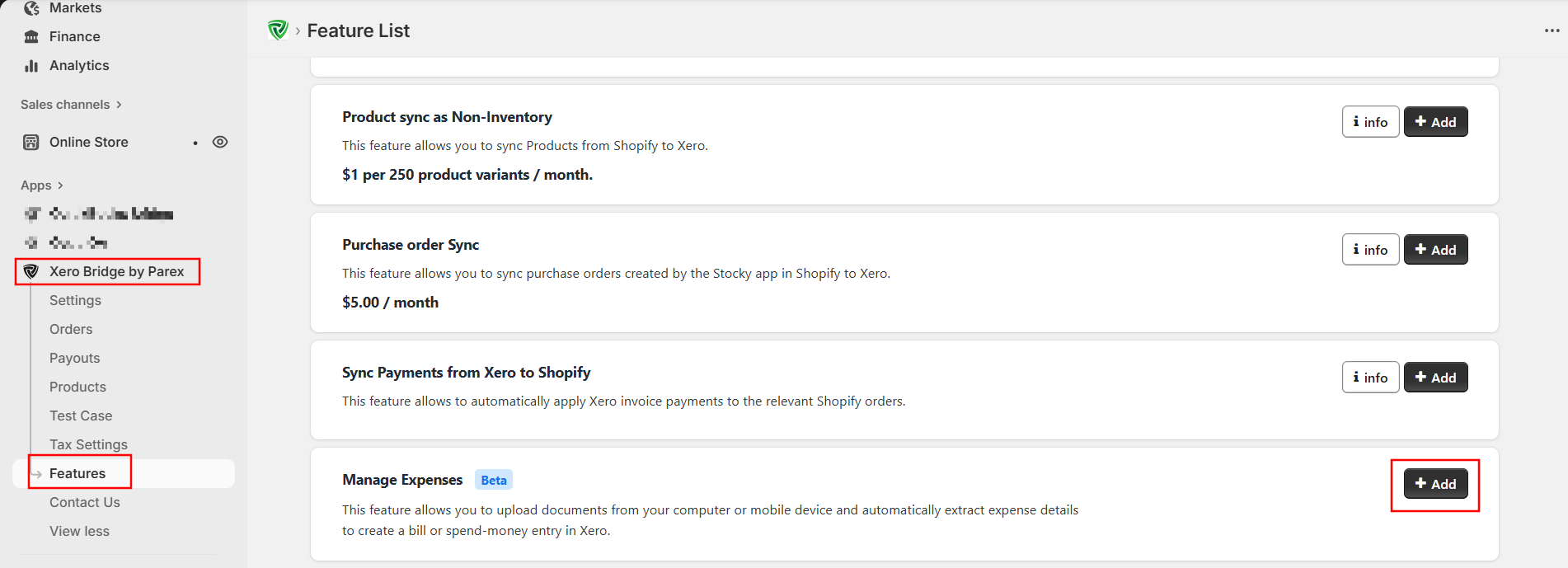
We’ve introduced a feature that lets you upload a receipt or bill, and—based on your configuration—it will automatically create a bill or spend-money entry in Xero. To add this feature, open the Feature List page in the app and click the ‘+Add’ button next to Manage Expense. Enable the required checkbox and choose the appropriate options in the available fields. Once saved, the feature will be activated.
Detailed Information:
This feature eliminates the need to manually create a bill or spend-money entry in Xero. It copies the required details from your uploaded document and automatically creates the corresponding entry in Xero.
Below are the step-by-step instructions for adding this feature:
-
From the left menu, open the Features section and click +Add next to Manage Expense.
-
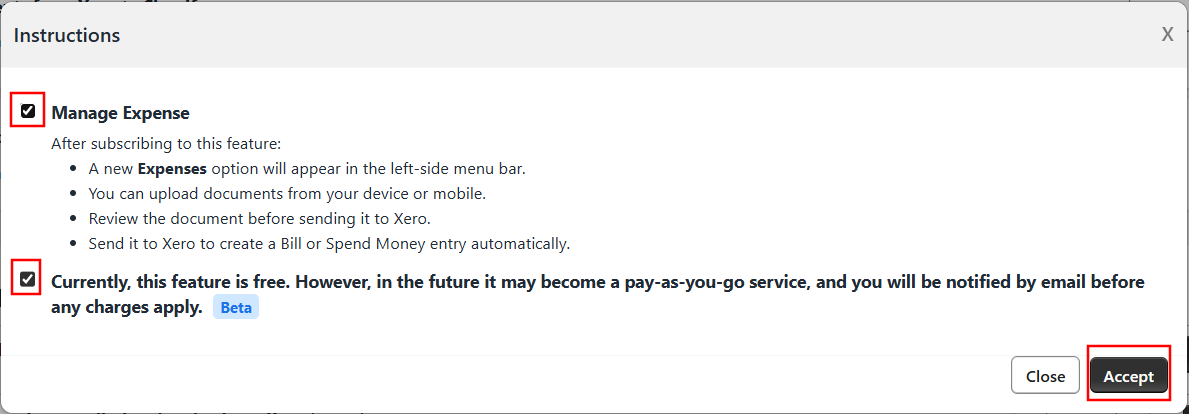
Go through the instructions and then select both the check boxes and click on the 'Accept' button.
-
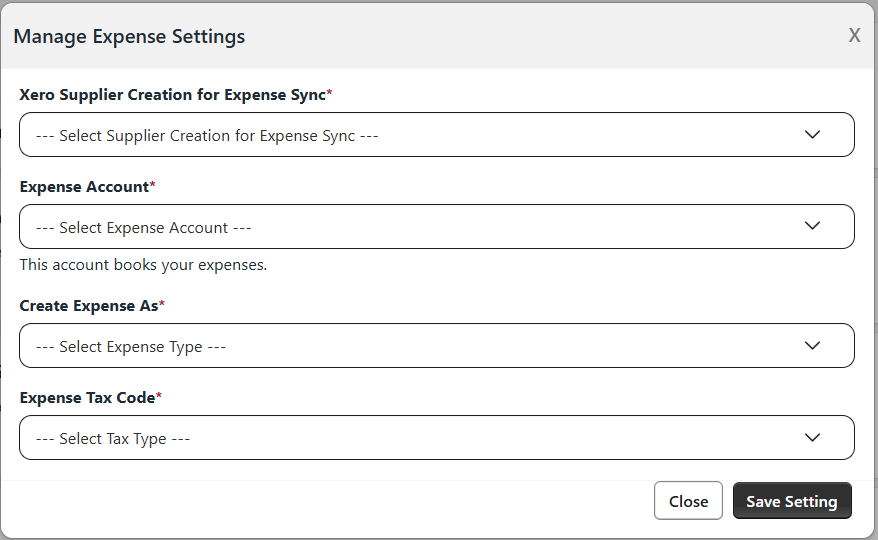
A settings window will appear. Choose the appropriate options based on your requirements.
-
Explanation of settings:
-
Xero Supplier Creation for Expense Sync: Choose whether you want a unique supplier(Actual supplier) created for each entry or prefer to use a single supplier for all entries.
-
Expense Account: Select the account to be used for the generated expense entries.
-
Create Expense As: Choose whether the entry should be created as a Bill or Spend Money.
-
For Bill: Enable the checkbox if you want a payment to be created for the bill.
-
Payment Account: Select the payment account to be used.
-
-
Expense Tax Code: Select the tax code that applies to the expenses.
-
-
After configuring all required fields, click ‘Save Setting’.
-
Once the settings are saved, the feature is activated, and the ‘Expenses’ option will appear in the left-side menu of our app in the Shopify Admin panel.
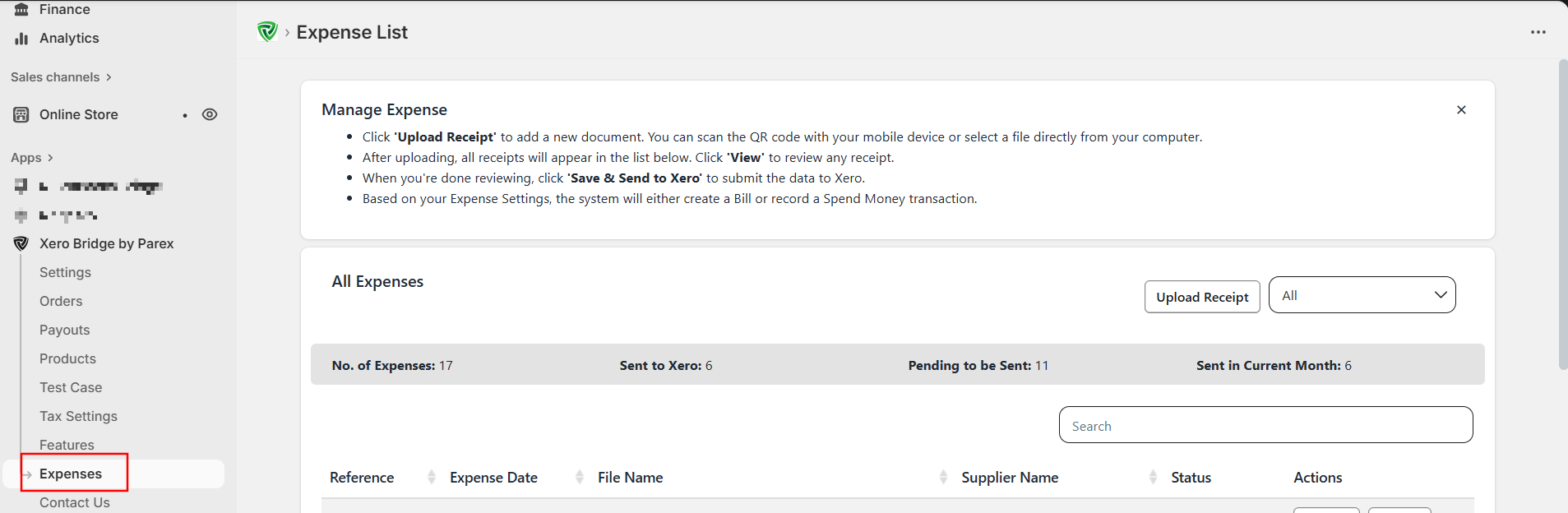
You will also get an email with instructions on your Shopify and our app’s communication email and a QR code to upload documents from your mobile device.
Read the article below to learn how to use this feature after subscribing.
How to use Manage Expense Feature?