
Overview:
If you are unsure whether an order has synced successfully from Shopify to QuickBooks, you can review the status directly within the Parex Bridge QBO app. The app provides clear visibility into orders that are pending, or awaiting update sync.
To view the sync status of your orders, navigate to:
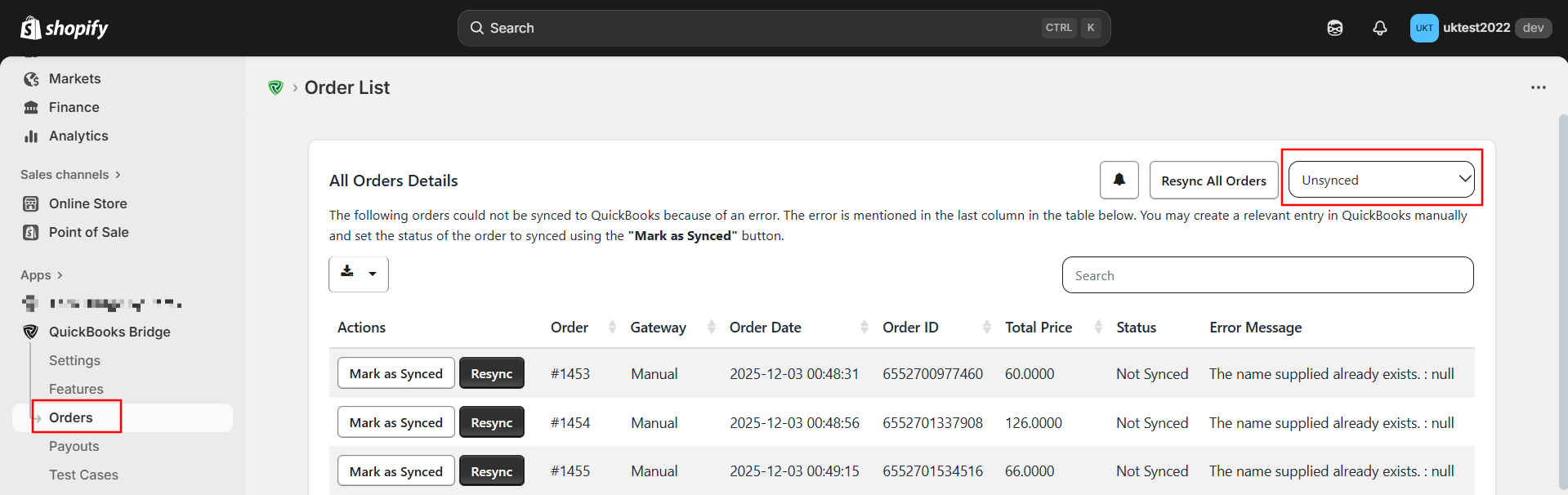
Shopify → Apps → Parex Bridge QBO → Orders
This section displays all order sync status and any errors returned by QuickBooks.
Detailed Information:
1. Unsynced (Orders Not Synced Due to Errors)
From the dropdown menu, select Unsynced.
This list displays all orders that could not be synced to QuickBooks because an error was returned from QuickBooks while syncing the order. An Error Message column is provided to help you identify the issue.
Once you correct the data in QuickBooks—based on the error shown—you can click Resync, and the order will sync successfully to QuickBooks.
2. Order Update Not Synced (Updates Not Synced Due to Errors)
From the dropdown menu, select Order Update Not Synced.
This list contains orders that were previously synced successfully, but QuickBooks returned an error when the app attempted to sync order updates (e.g., product updates, fulfillment changes, or payment updates) provided by Shopify.
These errors will also appear in the Error Message column.
Once you fix the issue, click Resync, and the order update will be synced to QuickBooks.