
Overview:
To view all unsynced orders in the Parex Bridge QBO app, navigate to the Order List page, where you can see orders with various statuses. To filter specifically for unsynced orders, apply the 'Unsynced' filter. This will display all orders that have not been successfully synced, along with any relevant error messages. If you need to review or share this information externally, you can use the Export button to download the filtered data.
Detailed Information:
If you're trying to identify and troubleshoot orders that haven’t been successfully synced, the Order List page in Parex app provides a simple way to filter, view, and export this information.
Follow the steps below to access all unsynced orders and review any associated error messages.
1. Go to the Account Details page of our app by clicking on the app name.

2. Click on the Orders menu list option.

3. This will take you to the Order List page, where all orders are displayed by default.
4. To filter only the unsynced orders, click on the ‘All’ dropdown and select ‘Unsynced’ option from the list.
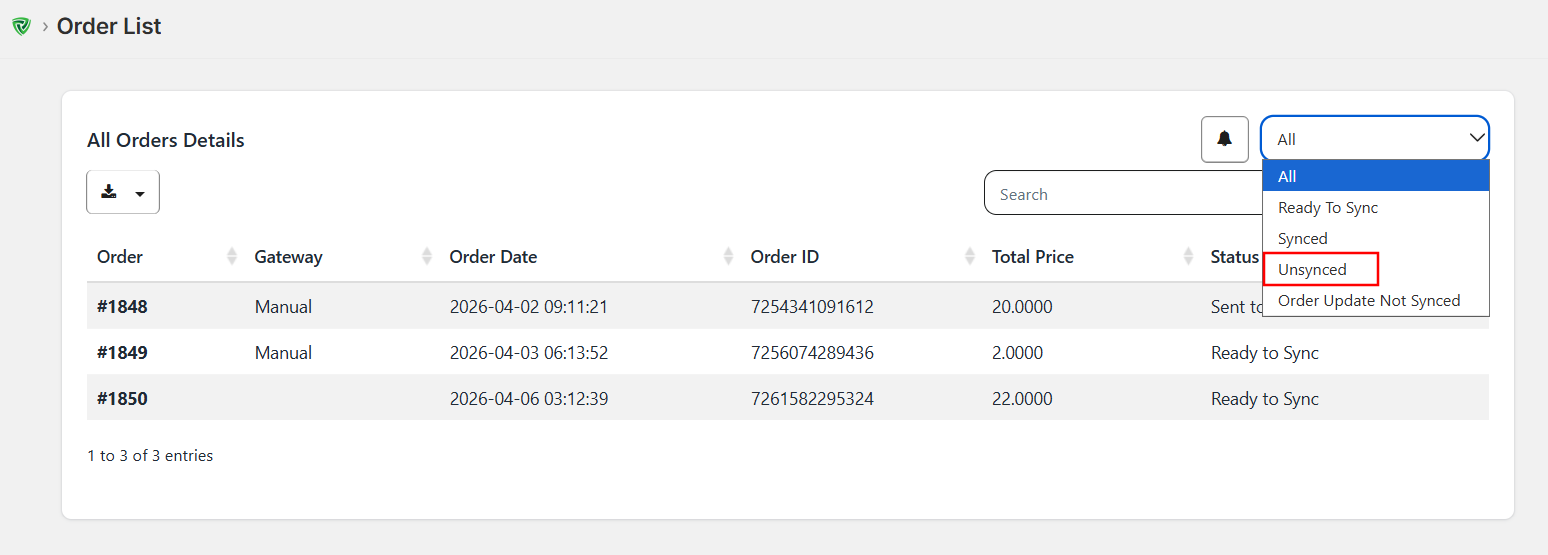
5. This will show you all the Unsynced orders with their relevant error messages.
This way you can quickly identify which orders need attention and why they failed to sync.