
This feature allows you to sync purchase orders created by the FlowPO app to Xero.
By default, our app does not sync the purchase orders created in Shopify to Xero. Our app has a feature to sync purchase orders created by the FlowPO app in Shopify to Xero. This feature syncs the purchase orders created by FlowPO app only because FlowPO app is from Parex. If purchase orders are created by any other 3rd party app then our app will not sync the purchase orders.
If you are using FlowPO app to create purchase orders and you have a requirement to sync the purchase orders from Shopify to Xero then you can subscribe to this feature from the "Feature List" page of our app.

You can click on the '+Add' button and a pop up page will appear. You need to enter/select the details in this pop page.
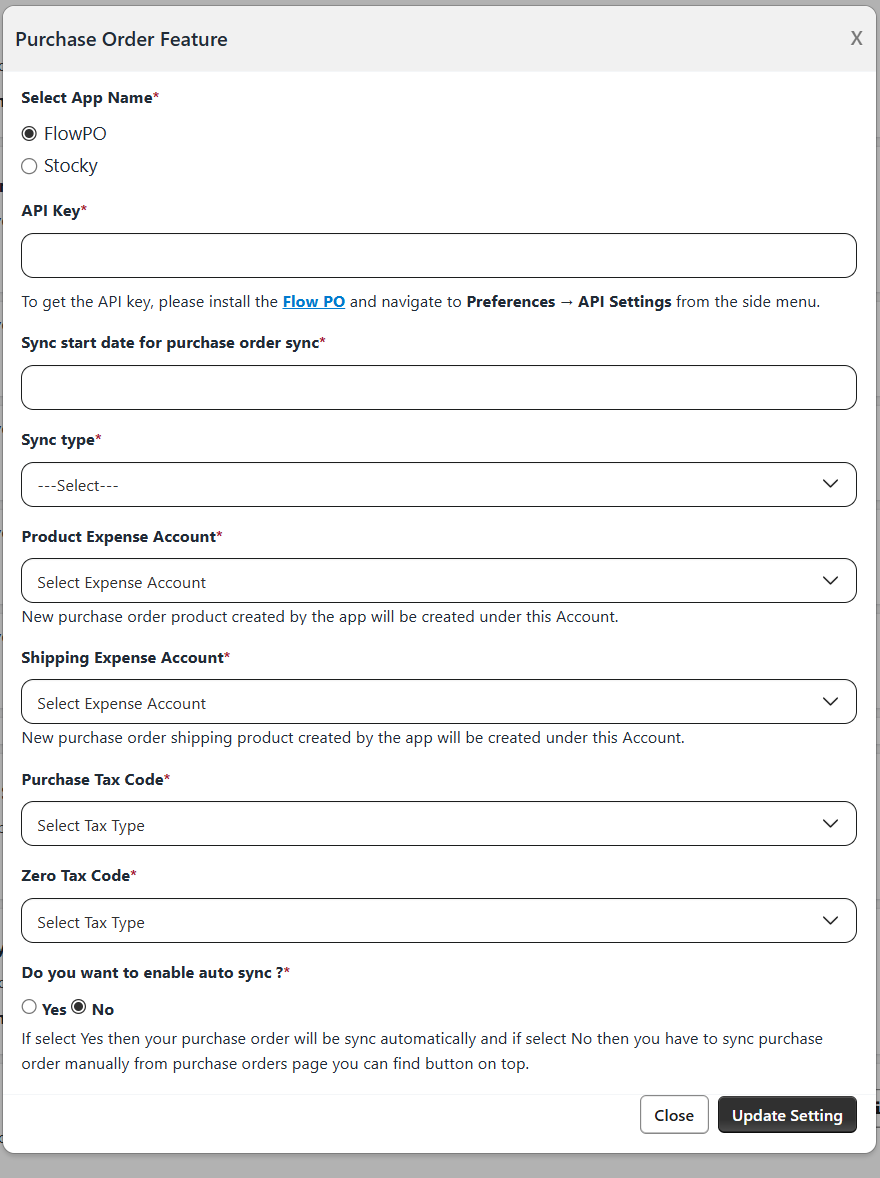
Select App Name*
Select FlowPO in the app name option.
API Key*
Enter the FlowPO API key in this field. You need to install FlowPO app and go to Preference -> API Settings to get the API key.
Sync start date for purchase order sync*
You need to select the sync start date from where you want to sync the purchase orders to Xero. Our app allows you to select the purchase order sync start date back to the past 2 months.
Sync type*
There are 2 options available in the drop down list if you want to sync the purchase orders as bill or purchase orders in Xero. Select the option as per your requirement from the drop down list.
Product Expense Account*
New purchase order product created by the app will be created under this Account. Select the account from the drop down list.
Shipping Expense Account*
New purchase order shipping product created by the app will be created under this Account. Select the account from the drop down list.
Purchase TaxCode*
From the drop down list, select the relevant purchase tax code that you want to apply to the items associated with the purchase order.
Zero TaxCode*
From the drop down list, select the relevant Zero tax code that you want to apply to the items associated with the purchase order.
Do you want to enable auto sync?
If you want to sync the purchase orders automatically then select 'Yes'. If you want to sync the purchase orders manually then you can select 'No'. Click on 'Update Settings' buttton to save the settings.
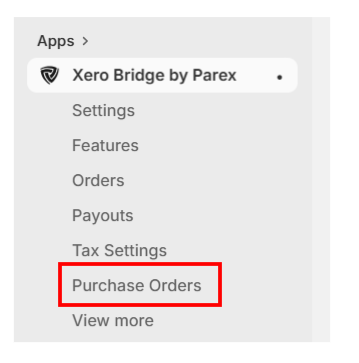
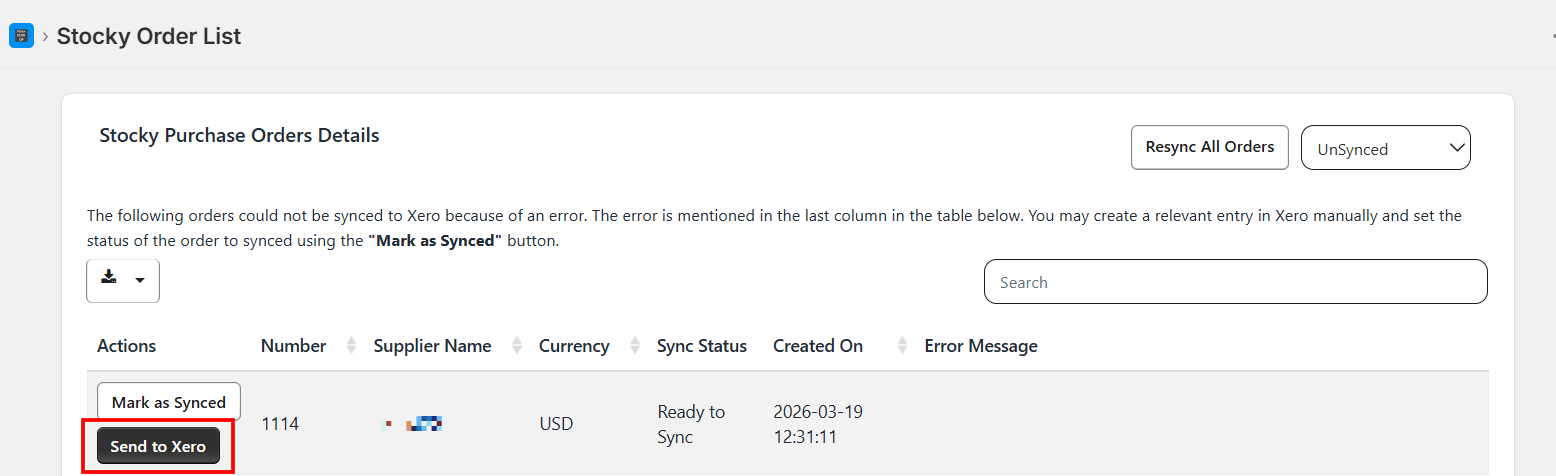
If you choose to manually sync the purchase orders then you will have to navigate to 'Purchase Orders' page and then click on 'Send to Xero' button. Please refer to the below screenshots.
Already using the Purchase Order Sync feature to sync Stocky Purchase orders?
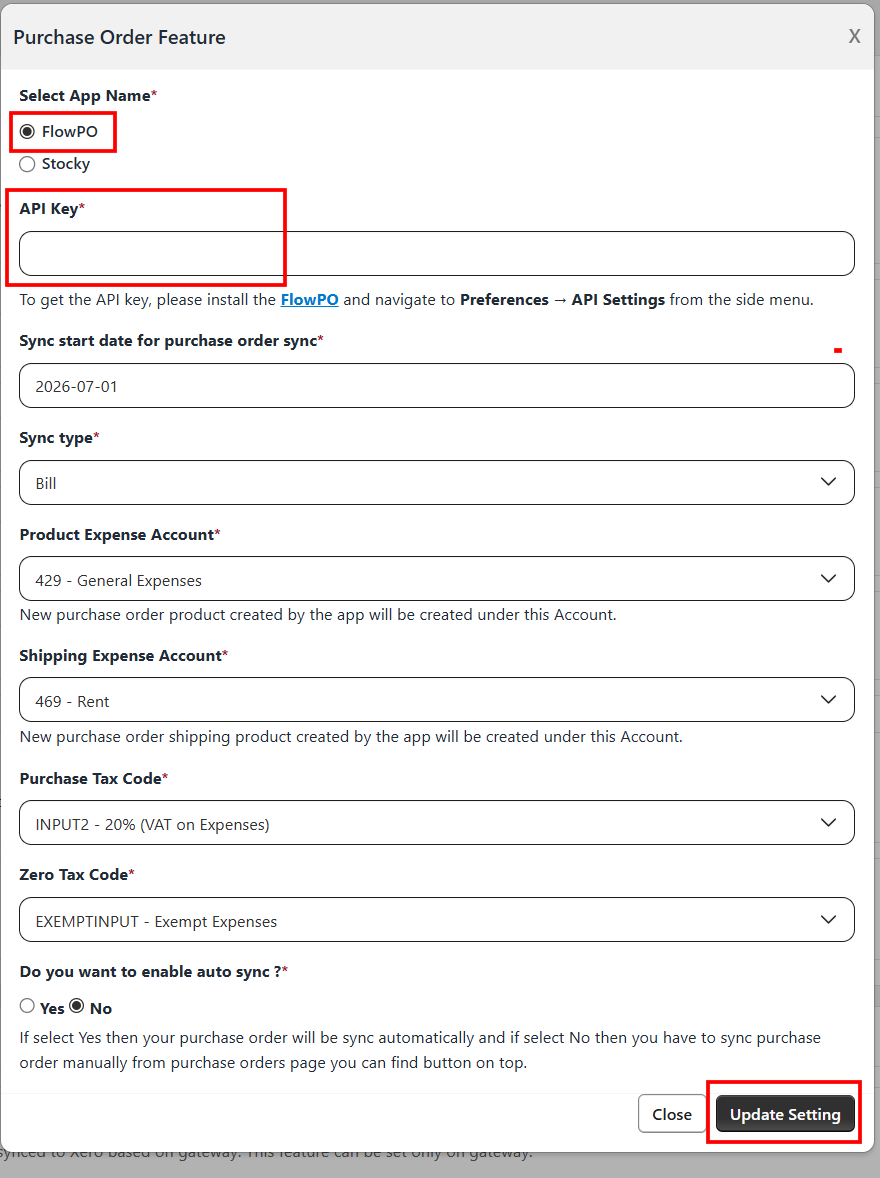
If you are an existing user already using the Purchase Order Sync feature to sync Stocky purchase orders, you will need to click on Edit and select the app name FlowPO.
Remove the Stocky API key, then retrieve and enter the FlowPO API key as mentioned in the above steps, and click on Update Settings.
Feel free to Contact us in case you have any questions or need any help.